How to setup email on iOS devices in the Mail app
To set up your 20i mailbox on an Apple iPhone or iPad, you need to:
- Head to the Settings icon and locate the Accounts & Passwords option.
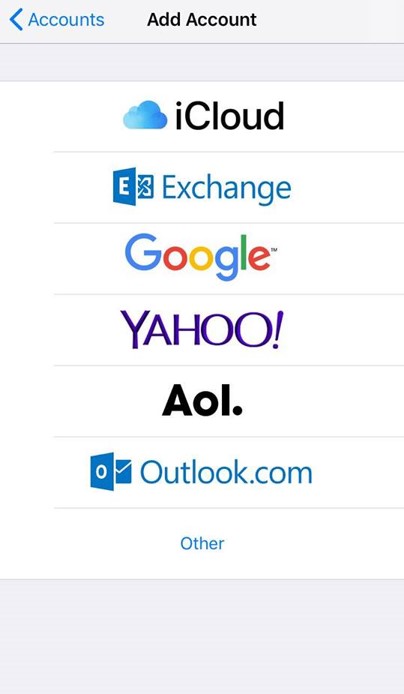
- Then select 'Add Account'.
- Select Other from this list.
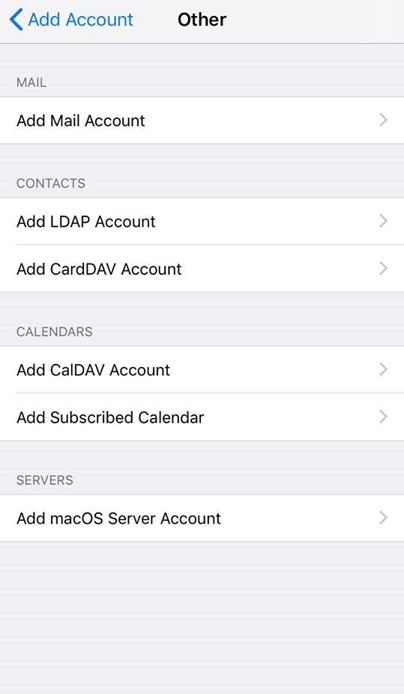
- Select Add Mail Account.
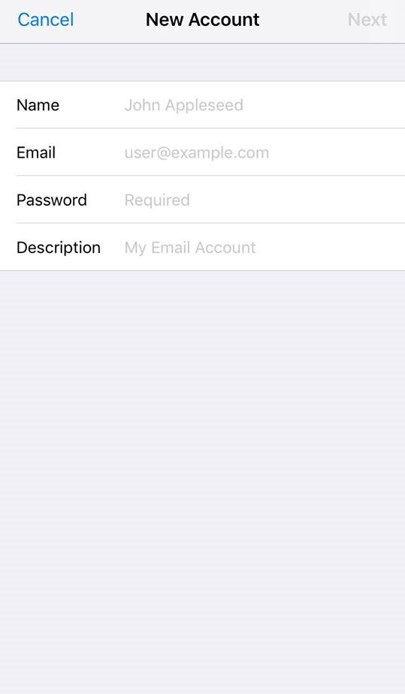
- Input the information requested:
Name: Anything
Email: example@yourdomain.com
Password: Mailbox Password
Description: Work, Business…etc
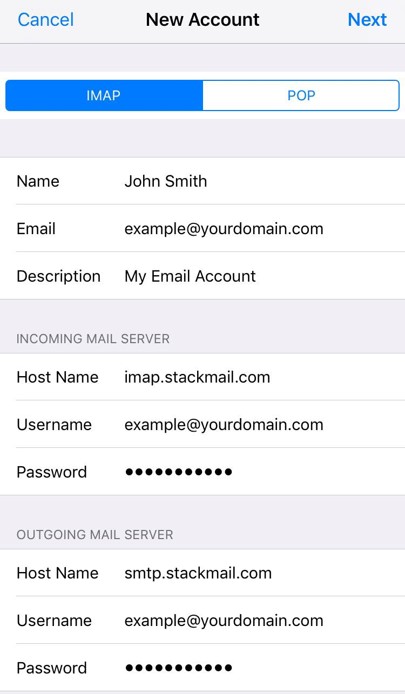
IMAP:
Incoming Mail Server
Host Name: imap.stackmail.com
Username: example@yourdomain.com
Password: Mailbox Password
Outgoing Mail Server
Host Name: smtp.stackmail.com
Username: example@yourdomain.com
Password: Mailbox Password
- Finally, select the mail account and go into the Outgoing Mail Server settings. Select Primary Server, make sure SSL is switched on and the port is set to 587.
Related Articles
How to set up two factor authentication with Office 365
How to set up two factor authentication with Office 365 Office for business Office 365 Admin Once your admin enables your organization with 2-step verification (also called multi-factor authentication), you have to set up your account to use it. By ...