How to set up two factor authentication with Office 365
How to set up two factor authentication with Office 365
Once your admin enables your organization with 2-step verification (also called multi-factor authentication), you have to set up your account to use it.
By setting up 2-step verification, you add an extra layer of security to your Office 365 account. You sign in with your password (step 1) and a code sent to your phone (step 2).
Sign in to your Office 365 portal at https://portal.office.com/. After you choose Sign in, you'll see this page:
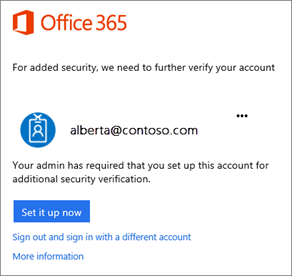
Choose Set it up now.
Select your authentication method and then follow the prompts on the page.
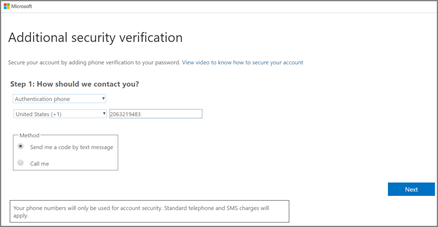
After you verify your alternate contact method, choose Next.
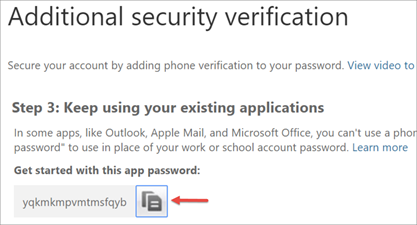
You'll get an app password, if you are using a newer version of Outlook or an up to date phone you should not need this password and this can be changed at a later date if it is needed.
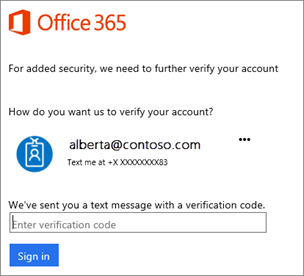
Once you complete the instructions to specify how you want to receive your verification code, the next time you sign in to Office 365, you'll be prompted to enter the code that is sent to you by text message, phone call, etc.
To have a new code sent to you, press F5.
Related Articles
How to setup email on iOS devices in the Mail app
To set up your 20i mailbox on an Apple iPhone or iPad, you need to: Head to the Settings icon and locate the Accounts & Passwords option. Then select 'Add Account'. Select Other from this list. Select Add Mail Account. Input the information ...